
eFax enables you to send and receive faxes directly from your email.
NOTE: This feature will only work from an email address associated with an enabled fax account in the Hosted Voice solution.
To send a fax using email:
- Open the email client for the email address associated with the eFax account.
- Compose a message. To find your sender address, please contact your Hosted Voice administrator.
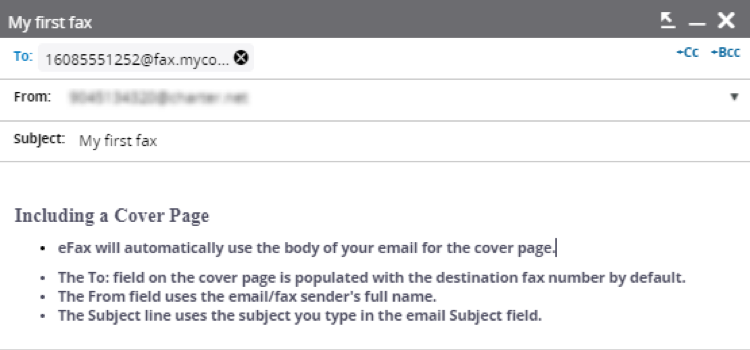
The full email address should appear as 11digitnumber@<fax.fqdn>
(i.e., fax.smartcityvoice.com). For example, 15055009900@fax.smartcityvoice.com.
NOTE: It is important to always include the full 11 digits when sending a fax to any number in the US or Canada.
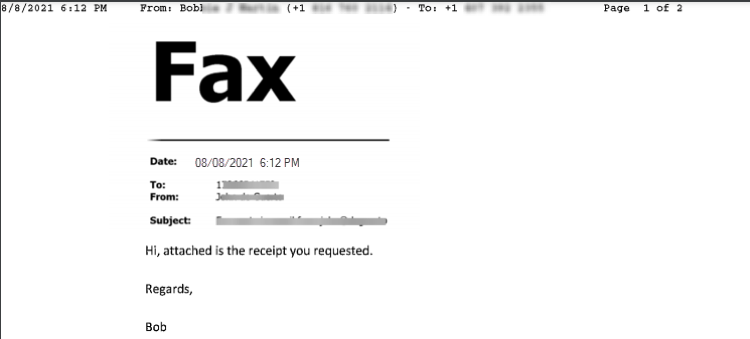
Below is a sample fax cover
3. If needed, attach one or more documents to the fax email.
When sending a fax via email, you can attach one or multiple documents with one or multiple document types. For example, you can attach a .pdf file and a .docx file in the same fax email. The supported file types include:
- Image Files (TIFF, GIF, PNG, JPEG)
- Adobe Acrobat Files (PDF)
- Microsoft Office Files (DOC, DOCX, XLSX, PPTX)
- Text Files (TXT, RTF)
TIP: If you create a file using a scanner or print to file, always choose the ‘black and white’ option for the output.
Each document you attach is converted to a faxable format and then sent to your destination fax number.
4. When you are ready to fax, click the Send button in your email application.
NOTE: After document conversion to fax, the total document file size limit is 10MB. If the fax exceeds the file size limit, you will receive a non-deliverable or NDR message in your email inbox like the following message:
